
If your WordPress website suddenly sends visitors to an unrelated spam, advertising or suspicious website, don’t treat the redirect as the whole problem.
An unwanted redirect can be a sign that something in the website has been compromised. More importantly, the redirect may not happen every time. You might open the website yourself and see nothing wrong while visitors arriving from Google are sent somewhere completely different.
The objective isn’t simply to find one redirect and delete it. You need to work out when the redirect happens, where it is being triggered, and whether anything remains that could bring it back.
This guide walks through a practical approach to investigating the problem.
Before making changes: Take a backup of the current website and database where possible. Even when the current installation may be compromised, preserving its state can be useful during investigation and recovery.
WordPress also provides an official guide for recovering a compromised website, including backup, access and cleanup considerations.
Quick answer
If your WordPress website is redirecting visitors to spam, first document when the redirect happens and take a backup before making major changes. Then check WordPress core integrity, plugins and Must-Use plugins, the active theme, administrator accounts, .htaccess, unexpected or recently modified files, and the database.
A successful WordPress checksum check does not prove the entire website is clean. Malicious code can exist outside the verified core files, so the investigation should continue until you understand what caused the behaviour and whether anything could bring it back.
Table of Contents
- Confirm exactly when the redirect happens
- Don’t assume the redirect tells you where the problem is
- Verify the WordPress core files
- Inspect the plugins
- Don’t forget Must-Use plugins
- Inspect the active theme
- Check .htaccess and server configuration
- Review WordPress administrator accounts
- Look for recently modified and unexpected files
- Check the database too
- Remove the suspicious components — but don’t stop there
- A real WordPress recovery example
- What if the website still redirects after cleanup?
- When should you get professional help?
1. Confirm exactly when the redirect happens
Start by trying to reproduce the problem.
Don’t test only while logged into WordPress. Try the website under different conditions:
- Open the website while logged out.
- Use a private or incognito browser window.
- Try another device, particularly a mobile device.
- Enter the website URL directly.
- Open the website from a Google search result.
- Test several pages, not just the homepage.
This matters because malicious redirects can be conditional. A compromised website might behave normally for the administrator while redirecting only particular visitors.
For example:
Direct visit
→ Website appears normal

Google search → Website
→ Redirected to a spam website
You may also find that the redirect happens only on the first visit, only on mobile, or only on particular pages.
So being able to visit your own website normally does not necessarily prove that the problem has disappeared.
Try to establish a reproducible pattern first.
2. Don’t assume the redirect tells you where the problem is
A spam redirect is usually the visible symptom. The code responsible for it may be somewhere completely different.
Potential locations worth investigating include:
- WordPress core files
- Plugins
- Must-Use plugins
- Themes
- The WordPress database
.htaccess- Server configuration
- Unexpected files added to the website
This is why simply searching your theme for the spam website’s URL isn’t enough.
The redirect destination may not even appear as plain text in the file or database entry responsible for the behaviour.
The goal at this stage is to investigate systematically rather than start deleting anything that looks unfamiliar.
3. Verify the WordPress core files
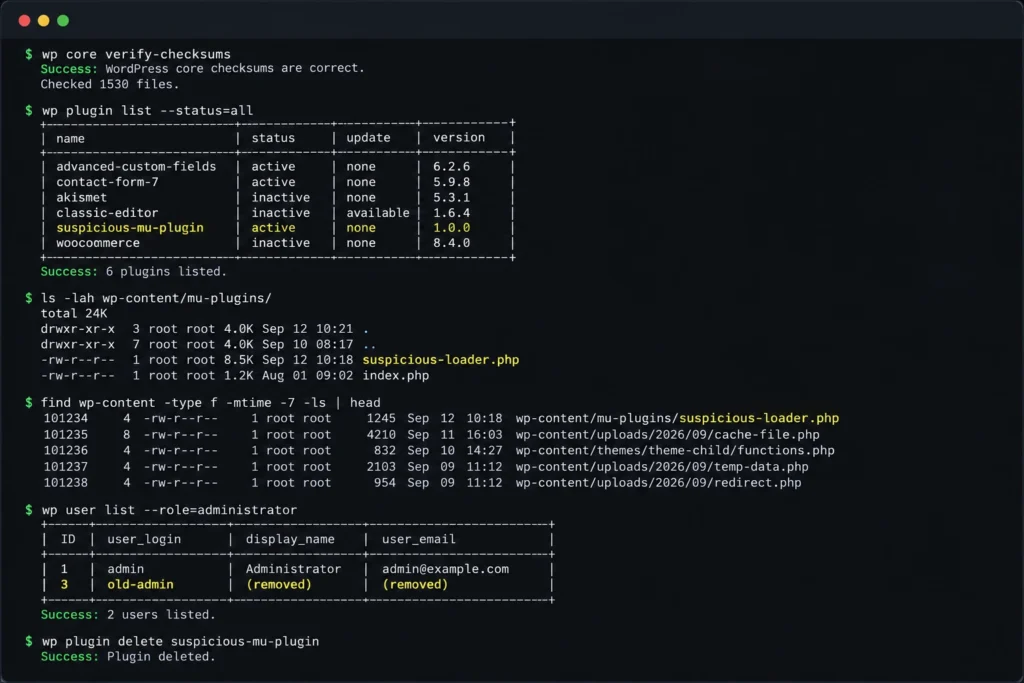
If you have SSH and WP-CLI access, one of the first checks you can perform is WordPress core integrity verification.
Run:
wp core verify-checksumsWP-CLI compares the installed WordPress core files against the official WordPress checksums.
A successful result may look similar to:
Success: WordPress installation verifies against checksums.This is useful information, but don’t interpret it as:
Checksums passed
=
Website is malware-free
It only tells you that the WordPress core files covered by the check match the expected versions.
Malicious files could still exist elsewhere in the installation.
A successful core verification therefore helps narrow the investigation rather than ending it.
4. Inspect the plugins
Next, review what is actually installed on the website.
Ask yourself:
- Do I recognise every plugin?
- Are there plugins nobody remembers installing?
- Are abandoned or unused plugins still present?
- Are any plugins unexpectedly disabled?
- Have plugin files changed recently?
- Do all installed plugins come from sources you trust?
For plugins distributed through the official WordPress repository, WP-CLI can also verify available checksums:
wp plugin verify-checksums --allBe aware that premium, private and custom plugins may not have official WordPress.org checksums available.
Also, don’t immediately conclude that every modified file is malware.
An existing website may contain legitimate custom development, particularly if several developers have worked on it over the years.
The important question is not simply:
Is this file different?
It is:
Why is this file different, and should it actually be here?
5. Don’t forget Must-Use plugins
One location that’s easy to overlook is:
wp-content/mu-plugins/MU stands for Must-Use.
Unlike normal plugins, MU-plugins are automatically enabled when placed in the appropriate directory. They don’t behave like conventional plugins that somebody simply activates or deactivates from the normal Plugins screen.
If you’re investigating an unfamiliar WordPress installation, inspect this directory rather than assuming the standard Plugins page tells you everything that’s executing.
Check:
- What files are present?
- What code do they load?
- Does the website owner recognise them?
- Did the previous developer intentionally create them?
- Were they modified around the time the problem started?
An unfamiliar MU-plugin isn’t automatically malicious, but it deserves investigation.
6. Inspect the active theme
Next, inspect the active theme, particularly if you’re dealing with an older or heavily customised website.
Files commonly worth reviewing include:
functions.php
header.php
footer.php
but don’t restrict the investigation to those files.
Look for:
- Unexpected PHP files
- Recently modified files
- Unfamiliar code
- External scripts that shouldn’t be there
- Code that doesn’t resemble the rest of the theme
If the website uses a child theme, inspect that too.
Again, unfamiliar code isn’t automatically malicious. On a legacy website, you may be looking at years of legitimate custom development.
That’s one reason blindly deleting suspicious-looking files can break the website without actually resolving the compromise.
7. Check .htaccess and server configuration
Redirects don’t necessarily originate from WordPress PHP.
For example, an Apache .htaccess file can contain rewrite rules that redirect requests before WordPress handles the page.
Inspect:
.htaccessand look for rewrite or redirect rules that you don’t recognise.
Compare the configuration against what the website actually requires.
If you have access to the hosting or server environment, the investigation may also need to extend beyond WordPress itself.
Depending on the hosting setup, check for unexpected configuration, scheduled tasks or files outside the normal WordPress directories.
8. Review WordPress administrator accounts
Go to:
Users → All Users
Review every account with Administrator privileges.
Check:
- Username
- Email address
- Role
- Whether the account belongs to a real person
- Whether that person still requires access
An administrator account you don’t recognise should be investigated.
Don’t only look at the display name. The actual username, email address and account role are more useful.
If you confirm that the website has been compromised, access credentials should also be reviewed.
That can include:
- WordPress administrator passwords
- Hosting credentials
- SSH credentials
- Database credentials where appropriate
- FTP/SFTP credentials
- Other accounts capable of modifying the website
Existing sessions may also need to be invalidated.
Removing malicious code while leaving compromised credentials unchanged can allow the problem to return.
9. Look for recently modified and unexpected files
If you have SSH access, filesystem investigation becomes particularly useful.
Rather than manually opening thousands of WordPress files, look for patterns:
- Recently modified files
- Unexpected PHP files
- PHP files inside upload directories
- Unfamiliar files in WordPress directories
- Files with unusual names
- Unexpected changes to configuration files
Modification time alone does not prove that a file is malicious.
WordPress updates, plugin updates and legitimate development work all modify files.
But timestamps can help establish a timeline, particularly if you know approximately when the suspicious behaviour started.
For example:
Redirect first reported
        ↓
Review recently modified files
        ↓
Identify unusual changes around the same period
        ↓
Inspect those files more closely
Use timestamps as evidence for prioritising your investigation, not as proof by themselves.
10. Check the database too
A clean-looking filesystem doesn’t guarantee that the problem is file-based.
Malicious JavaScript, unwanted configuration or injected content can also be stored in the WordPress database.
Depending on the symptoms, database investigation may include checking:
- WordPress options
- Unexpected scripts
- Widget or block content
- Modified posts or pages
- Plugin configuration
- Unknown URLs or domains
- Injected JavaScript
Be careful when editing the database directly.
Take a database backup first and understand what a value is used for before deleting or changing it.
11. Remove the suspicious components — but don’t stop there
Suppose you find a suspicious plugin or PHP file.
You remove it.
The spam redirect stops.
That’s encouraging, but there is still an important unanswered question:
How did it get there?
Finding the malicious component and identifying the original entry point are not necessarily the same thing.
If the vulnerability, compromised credential or persistence mechanism remains, the unwanted component may return.
After cleanup, review the wider environment:
- WordPress version
- Plugin versions
- Theme versions
- Administrator accounts
- Passwords and authentication
- File permissions
- Backups
- Hosting access
- Unused software
- Logging and monitoring
WordPress’s official hardening guidance is also a useful reference when reviewing the installation after recovery.
Remove components that are genuinely unnecessary and update software where it is safe to do so.
The objective is not simply to make the redirect disappear once.
The objective is to restore the website to a state you understand and can maintain.
12. A real WordPress recovery example
I encountered this type of problem while recovering an existing WordPress website for a consulting business.
The website showed two significant symptoms:
- The public homepage was no longer displaying correctly.
- Visitors arriving through Google could be redirected to unrelated spam content.
Rather than immediately rebuilding the website, I first investigated the existing WordPress installation.
WordPress core integrity verification passed, which helped narrow the investigation away from modified core files.
The wider investigation included reviewing the existing WordPress environment, plugins, Must-Use plugins and administrator access.
Suspicious components were identified outside the verified core installation, and unnecessary administrator accounts were removed.
The priority was to recover the existing public website first rather than turn an urgent technical incident into an unnecessary redesign.
See the project: Ahaaha — WordPress Recovery & Security Cleanup →
13. What if the website still redirects after cleanup?
Return to the same conditions you used when reproducing the problem.
Test again:
Logged out
Incognito
Mobile device
Direct visit
Google search visit
Different pages
If only one particular scenario still redirects, that information is valuable.
Also consider caching.
Your browser, WordPress caching layer, CDN or other infrastructure may cause old behaviour to appear after you’ve made changes.
Test from independent environments rather than repeatedly using the same browser session.
If the redirect genuinely returns after being removed, assume something may have been missed until you establish otherwise.
14. When should you get professional help?
If you’re comfortable managing WordPress but not PHP, SSH, server configuration or database investigation, there is a point where repeatedly deleting files becomes riskier than properly investigating the installation.
Professional investigation may be worthwhile when:
- The redirect keeps returning.
- The problem affects only certain visitors.
- Unknown administrator accounts appear.
- Suspicious PHP files keep reappearing.
- You can’t determine which files are legitimate customisations.
- The website handles important customer or business activity.
- You don’t have a known-clean backup.
- You’re unsure whether the problem extends beyond WordPress itself.
A WordPress security incident isn’t always solved by installing another security plugin.
Sometimes the important work is understanding what changed, what should actually be there, and what needs to be fixed without unnecessarily rebuilding the website.
If your WordPress website is repeatedly redirecting visitors, showing signs of malware or behaving unexpectedly, a quick plugin fix may not address the underlying problem.
Explore my WordPress troubleshooting and website recovery services to learn how I approach diagnosing and recovering existing websites.